Docs / User Guide / Looks and Retro Vibes
Looks and Retro Vibes#
Themes and their file format, the Retro Vibes 3D viewer, and recording what you play. Part of the User Guide.
Themes#
A theme sets the interface's colours, and can lay a faint pattern on the page behind the panels. Classic is the default, and seven more are built in. Each has a pattern of its own: Classic a large, subtle grid, GEOS a dither like its desktop, Breadbin a woven crosshatch, Phosphor scanlines in dark mode and green-bar paper in light, Out Run a finer grid, Commando dots, Art Deco rows of fans and Lookout Point twinkling stars in dark mode and waves in light. The gallery below shows each in dark mode on the left and light mode on the right; step through it with Previous and Next. The screen, the CRT looks and Retro Vibes keep their own colours whatever the theme, and you can import your own too. On a first visit, the welcome screen wears one of the built-in themes at random, and the app keeps that theme when you leave it. Once your ROMs are loaded, a visual picker appears once to let you choose another. The documentation follows your selected theme and dark or light appearance too.


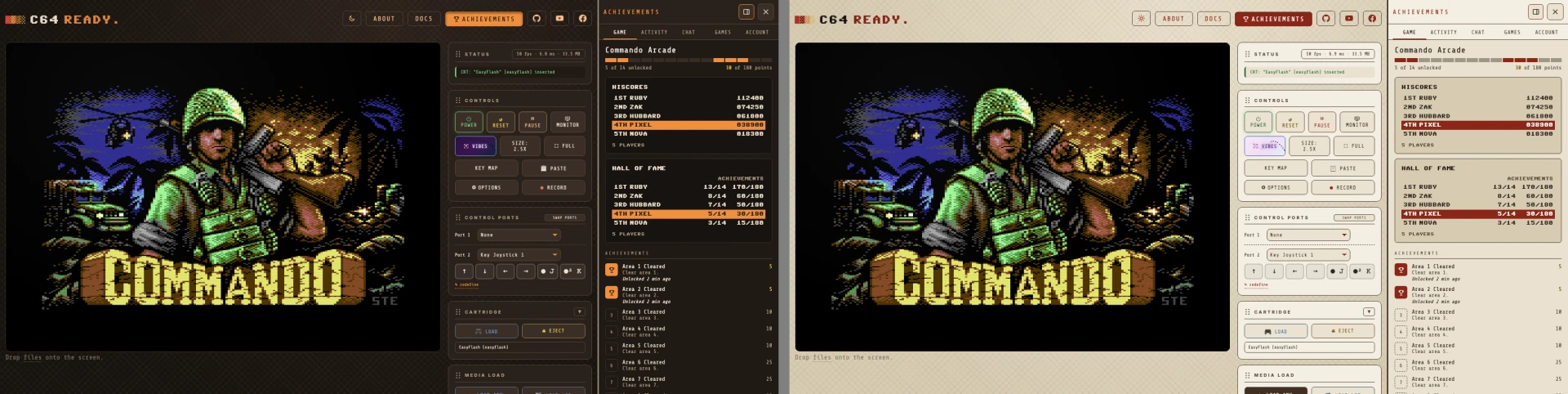

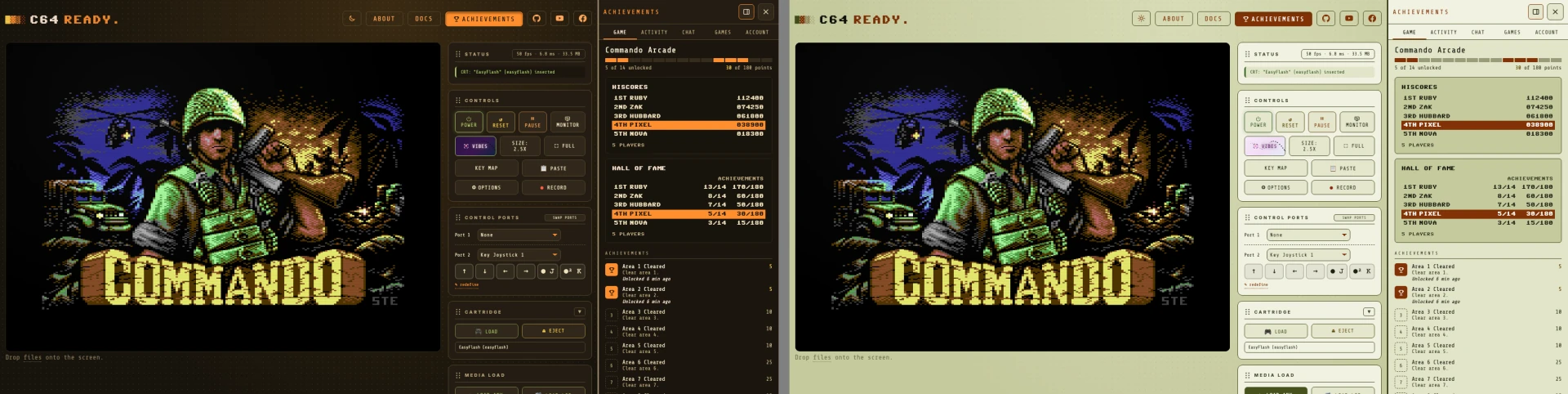
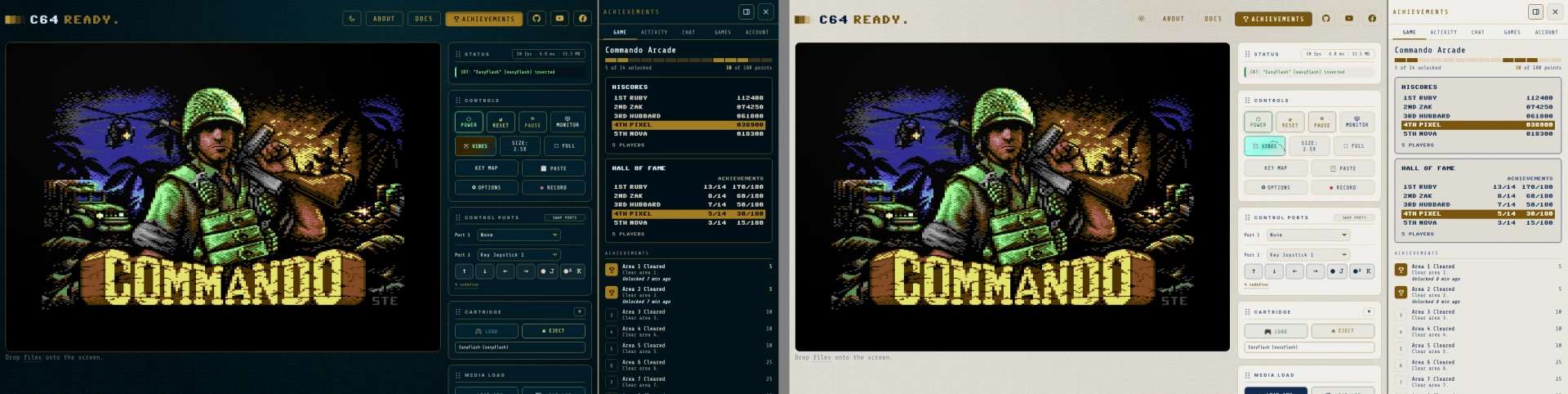

Open the visual picker with THEME in Options ▸ Theme. Choose a card and press APPLY THEME, or KEEP CURRENT to leave your look as it is. Imported themes appear as extra cards with their own colours and a diamond icon.

IMPORT loads a theme file, which then stays in this browser; REMOVE takes an imported one out again. EXPORT saves the current theme with every colour filled in, so exporting Classic gives you a complete file to start your own from. The one exception is the button colours (see Buttons below): a theme that leaves them out exports without them, so they keep following its other colours as you edit.
A theme file is JSON. Here is the start of one, with Classic's colours; the
… lines stand for the rest. A complete file has 155 colours per mode, 137
without the button colours and the pattern ink, but a theme only needs the
ones it changes.
Export Classic to get the whole file to edit.
{
  "format": "c64ready-theme/2",
  "name": "My theme",
  "author": "optional",
  "modes": {
    "dark": {
      "crt-bg": "#070a1c",
      "ui-bg": "#0b0e24",
      "panel-bg": "#11142e",
      "border": "#2c2f63",
      "control-bg": "#1a1a30",
      "text": "#ccd0ec",
      "dim": "#8e8eb7",
      "accent": "#7471ec",
      "green": "#8fe985",
      "amber": "#e6dd6b",
      "red": "#d76b70",
      …
    },
    "light": {
      "crt-bg": "#e8e9f3",
      "ui-bg": "#f4f5fb",
      "panel-bg": "#ffffff",
      "border": "#cfd2e7",
      "control-bg": "#eef0f8",
      "text": "#23264d",
      "dim": "#53567d",
      "accent": "#4c49c0",
      "green": "#2a7337",
      "amber": "#7a5d00",
      "red": "#b8323b",
      …
    }
  },
  "look": {
    "dark": { "pattern": "stars", "size": "medium", "twinkle": true }
  }
}
- Modes: give
dark,lightor both. A theme with only one mode always shows that one, whatever the appearance setting. - Colours: each key is one of the interface's colour names (an exported
file lists them all), and each value a plain colour:
#rgb,#rrggbb,#rrggbbaa,rgb()orrgba(). Any colour you leave out keeps its Classic value for that mode. - Buttons: buttons have colours of their own,
button-bgfor the face andbutton-text,button-dim,button-accent,button-accent2,button-green,button-amberandbutton-redfor the labels. Leave them out and buttons use the theme'scontrol-bg,text,dimand accent colours, the same as the fields; set them to give buttons a look of their own. The main actions, LOAD ANY, drive 8's LOAD and Assembly64's EXPLORE, have a set of their own again,primary-bg,primary-text,primary-dim,primary-accent,primary-accent2,primary-green,primary-amber,primary-redandprimary-border; left out, they are the button colours and the border. - Stripes:
accent-stripecolours stripes laid over a fill, such as the Monitor's memory pages a captured screen was read from. Left out, it is the theme'saccentat 30% opacity. - Keys: key labels, and the keys you can press in Control Ports and
KEY MAP, are neutral tints of the theme's
textcolour.kbd-bg,kbd-border,kbd-hoverandkbd-inkno longer change anything; a theme that sets them still imports. - Page pattern: the optional
looknames a pattern for each mode, drawn on the page behind the panels:dither,bars,scanlines,grid,dots,fans,weave,stars,wavesornone, with asizeofsmall,medium(the default) orlarge. It is drawn inpattern-ink, which has to be faint, an alpha of 0.15 or less such asrgba(0, 0, 0, 0.08), so the header text over it stays readable; left out, the pattern uses the theme'stextcolour at 0.07. On a system set to ask for more contrast the page stays plain. A file in the olderc64ready-theme/1format still imports, with no pattern. - Twinkle: add
"twinkle": trueto a mode's look and its pattern twinkles. Withstars, a few bright stars at a time flash and fade, each flash somewhere new. Other patterns flash a fainter copy of themselves the same way. Twinkle is drawn in the theme'stextcolour, brighter than the pattern ink, since it only shows for a moment. A system set to reduce motion keeps the pattern still, and so does the full-screen display. - Checks: a file with an unknown name, a value that is not a colour, a
pattern or size that is not on the list, a
twinklethat is nottrueorfalse, an ink stronger than 0.15, or a missingnameormodesis refused, and the message says which. Importing a file with the same name as an imported theme replaces it.
Retro Vibes#

A full-screen 3D scene of the machine, opened with VIBES.
When Touch Joystick is assigned to a control port, its stick and buttons remain available over the 3D scene.
| Control | What it does |
|---|---|
| Drag | Rotate the view. |
| Scroll / pinch | Zoom. |
| Double-click / double-tap | Powers the C64 on when it's off, so you can boot the machine without leaving the 3D scene. |
| 🎬 | Change the scene. |
| ⛶ | Glides the camera to a head-on view that fills the frame with the monitor, a virtual fullscreen. From the side or behind, it swings around the monitor to its screen. Drag or scroll to break out of it. |
| Toast | While achievements are on: drag a sample toast to where toasts should show, and its corner to size them. Click again or press Esc when done. |
| Trophies | While a game with achievements is loaded: shows and hides the trophy HUD. |
| Fog | In Foggy Spotlight on a computer, turns the stage smoke off and on. With it off, the beam shows as a soft cone, as on phones and tablets. It is remembered. |
| 🥽 ENTER VR | View in VR (shown when a headset or the WebXR emulator is available). |
| ⓘ model credit | Shows attribution for the 3D model. |
| Cmd+Shift+X / Ctrl+Shift+X | Studio mode: hides everything else in this table (the mouse pointer included) and leaves the scene alone with the C64 READY. logo, for screenshots and video. Toasts and the trophy HUD still show. The same keys bring the controls back. It is remembered, so the scene reopens the way you left it. |
| ✕ or Esc | Close and return to the emulator. |
Scenes#
The 🎬 button cycles through five scenes. Each strip in the gallery shows the scene from the default view, up close, and from a low angle; step through them with Previous and Next.


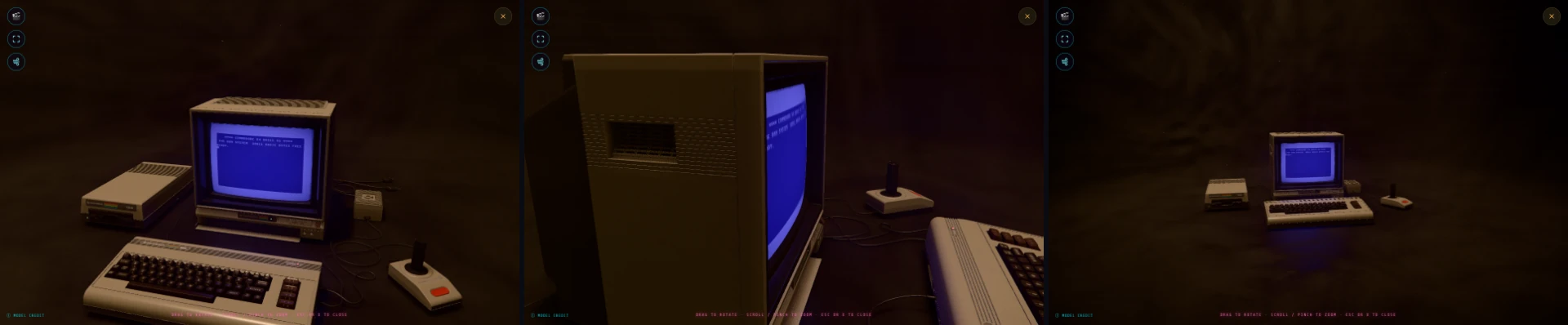

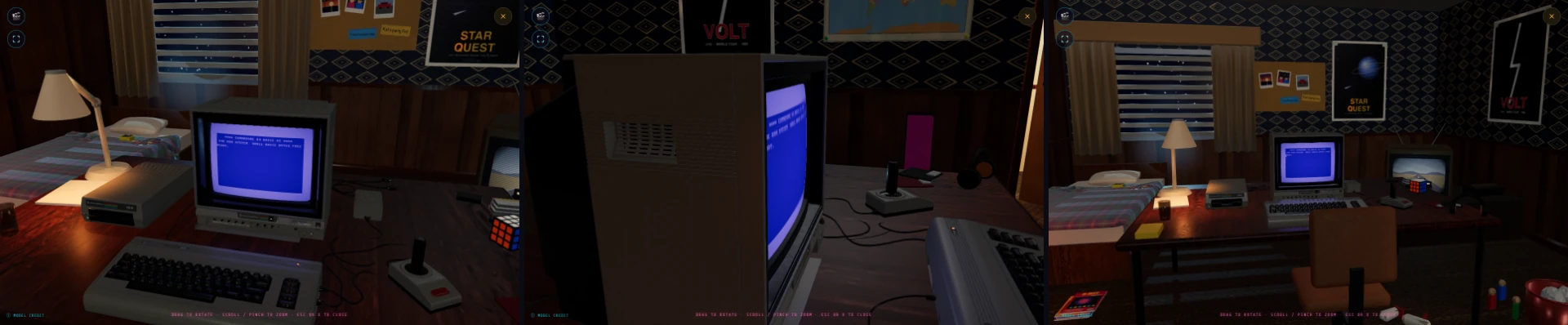
Which model loads is set by 3D MODEL in Options.
Recording#
Capture the whole browser window, with sound, to an .mp4 video using the
● RECORD button in Controls, enabled once the machine is
powered on. Click it, pick the window (or screen) to share in the browser prompt,
and the button becomes ⏹ STOP RECORDING. Press stop and the file downloads
as c64ready-<date-and-time>.mp4.
- It records everything on screen, fullscreen and Retro Vibes included: share "Entire Screen" in the browser's prompt for those, since a window or tab share does not follow the picture into fullscreen. The button lives in the side panel, so start recording before you enter those modes; to stop from inside them, use the browser's "Stop sharing" control, or leave the mode and press ⏹ STOP RECORDING.
- The audio is the emulator's own output, tapped directly, so it stays clean and in sync even while the machine is muted.
- The video has a resolution ceiling, set by RECORDER in Options ▸ Other, 1080p by default. Without it, a HiDPI display would record far more pixels than the C64 picture needs. A larger surface is scaled down to fit, aspect ratio intact; a smaller one is recorded as it is; NATIVE removes the ceiling. Browsers that ignore the request record at native size.
- Desktop Chrome and Safari (and other Chromium browsers such as Edge, Opera, Brave). Elsewhere the button explains why instead of recording.
- Safari may end the capture when the page loses focus, for example on a file dialog or an app switch. The recording so far is saved and the status line says what happened. For a long take, load what you need before pressing RECORD, or use Chrome.